Part 1. Getting started
1.2 Your account
Your photo, the passkeys you have added for each device, why Kestrel sometimes will not let you remove the last one, and adding Kestrel to Claude.
Written forRegistrarFront officeTeacherHead of house or yearWellbeingCounsellorLearning supportChild safety officerCase managerDeputy case managerNursePrincipal and executiveBusiness managerIT
What the account page is for
The account page is where you manage how you sign in and how colleagues see you. It has the photo that appears beside your name, the passkeys that let you sign in without a code, and the AI tools you have connected to Kestrel. Your name and address come from the school, so you change them by asking the office.
Open your account
- Press your photo or initials at the top right of the band. The label for screen readers is "Account menu".
- Choose "Account". The page is headed with your name, with your address under it.
The same menu includes "User guide", "Guides by role", "Support" and "Sign out". An administrator also sees "Settings", and a reader who may read the audit trail sees "Audit trail". A member of staff the school has also given family access sees "Family portal". The last line of the menu is the build you are using, which is worth quoting when you contact support.
Account
/accountYour photo, your passkeys and your connected AI tools. Any signed-in account can open it, and the photo and connected AI tools sections are shown only to someone who works at a school.
Your photo
Staff at your school see your photo beside your name, in the account menu, in lists and on records. Until you add one, Kestrel shows your initials.
- On the account page, find the "Photo" section.
- Press "Add a photo", or "Change photo" if you already have one, and choose a picture from your device.
- Wait for the message "Your photo is saved." The account menu changes at once.
- To go back to your initials, press "Remove" in the same section.
A photo can be a JPEG, a PNG or a WebP image up to 10 MB. If you choose another kind of file, Kestrel says "A photo has to be a JPEG, PNG or WebP image." and keeps your current photo.
Your passkeys
A passkey lives on one device. If you sign in from a work laptop, a phone and a classroom computer, each needs its own passkey. The "Passkeys" section lists each one you have, with the date it was added.
- Under "Passkeys", press "Add a passkey".
- Confirm on the device with your fingerprint, face or PIN.
- The new passkey appears in the list with today's date.
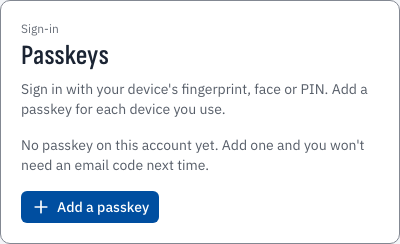
/accountIf that device already has a passkey for your account, Kestrel says so and adds nothing. If you cancel the device's prompt, the page says the passkey setup was cancelled, and you can try again.
- Add a passkey for another device Add a passkey for another device
Removing a passkey
- Find the passkey in the list. The device is named, with the date it was added, so you can tell which one you are cutting off.
- Press "Remove" beside it.
Remove a passkey when a device is lost, stolen or handed back. That device can no longer sign in as you.
Add Kestrel to Claude
Where your school has turned on AI connectors, you can ask Claude about the school and Claude reads the answer from Kestrel. It answers with figures for the school, such as attendance by year level, with your own timetable and with the school calendar. It never names a student, sees only what you could already see, and cannot change any record. Your school's AI policy decides whether you may use it, and from which Claude account.
If your school has a Claude organisation, its owner adds Kestrel there once as a custom connector, with the connector address from Kestrel's AI connectors settings. Each member of staff then connects for themselves.
- In Claude, open Settings → Connectors, find Kestrel and choose Connect.
- Kestrel opens. Sign in if it asks you to.
- Kestrel asks "Allow Claude to read Kestrel as you?" Check that "Identifies as" and "Sends you back to" both name the Claude you started from, then choose "Allow".
- Claude lists Kestrel among your connectors, and you can ask it a question.
On a personal Claude plan, and only where your school's AI policy allows it, you add the connector yourself. In Claude, add a custom connector under Settings → Connectors, paste the connector address your administrator gives you, then choose Connect and answer Kestrel as above.
Claude stays connected while you use it. A connection you leave unused for 14 days ends, and you choose Connect in Claude again. To end one, find "Connected AI tools" on the account page and press "Remove" beside Claude. Kestrel says "Claude is removed. Its next question is refused." Claude then shows its own error the next time it asks Kestrel, and it does the same if your school turns the connector off.
Journeys
Settings
Whether emailed codes work, and whether passkeys are required, are decisions for your school. An administrator makes them on the "Sign-in" page of Settings.
Training notes
Everyone needs this chapter, and it takes about five minutes. It pairs with the signing-in chapter in the first session for any role. Ask each person to add a photo and a second passkey before they leave the room.